
 한국어
한국어 Tiếng Việt
 日本語
日本語 ไทย
ไทยFeed ordering in four steps, starting from one alert
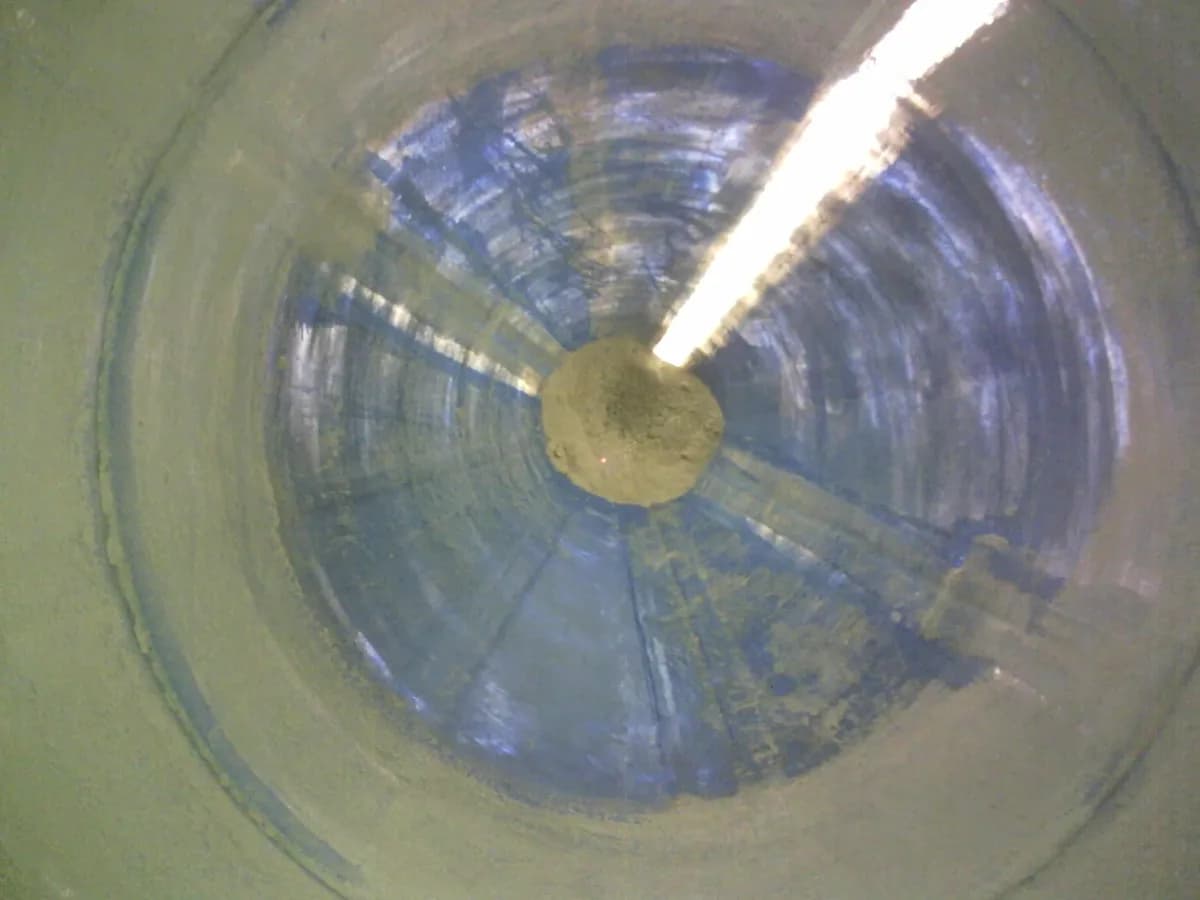
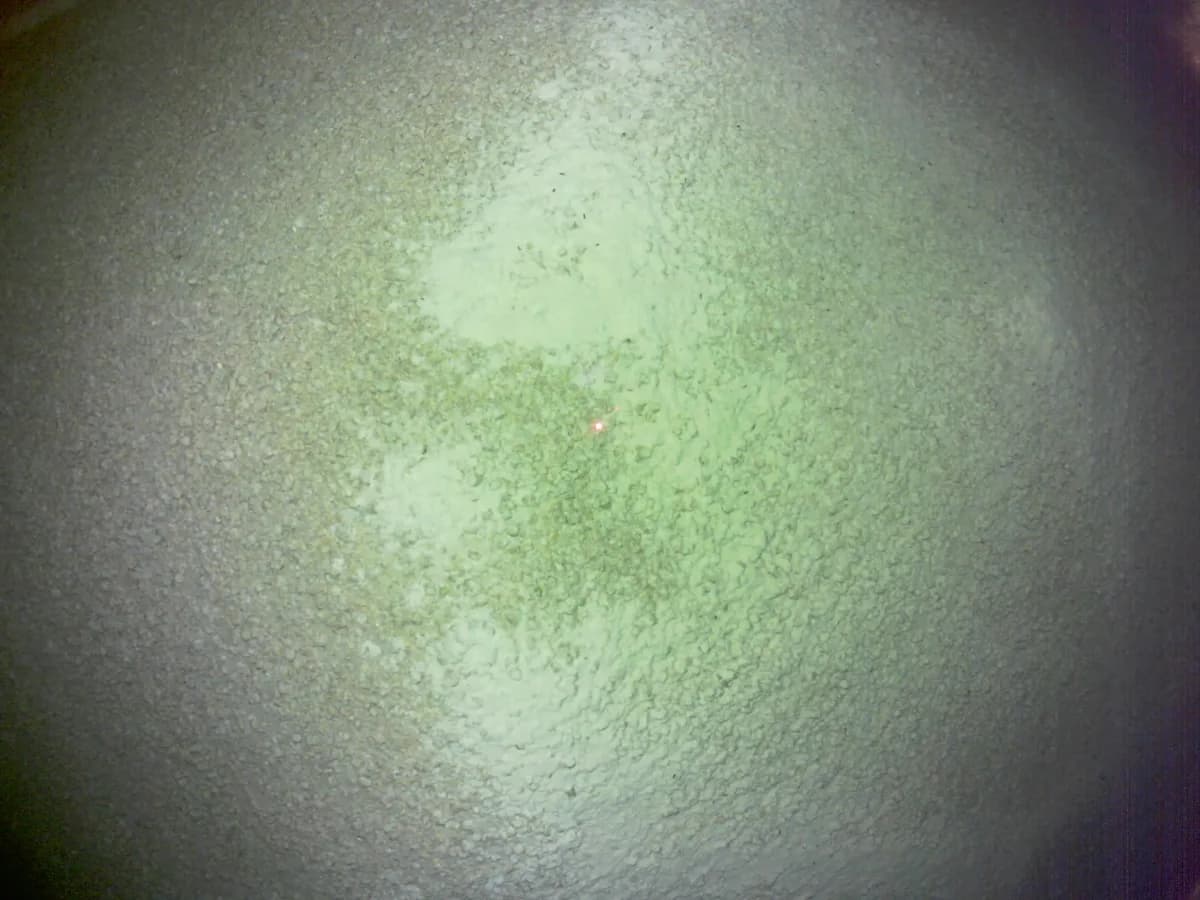
MyFeed tells you before the feed runs low. Tap the alert, check the remaining volume with a photo taken inside the bin, and place the order right there - no climbing the bin, no cross-checking paper records.
From alert to order in four steps
- 1
Receive the 'Order needed' alert
When a bin runs low, an alert arrives on your phone. You do not have to open the app and look for it.
- 2
Check the bin photo
Tap the alert to see the photo taken inside the bin along with the previous order.
- 3
Order from the alert
Select the bins, enter feed type, quantity, and delivery date, and the order is submitted.
- 4
Track until delivered
Follow the order from submission through delivery in the order history.
01The alert arrives before the feed runs out
The most common failure in feed ordering is not a wrong order - it is a late one. MyFeed uses measured volume to tell you when it is time to order.
Push alert when an order is due
When a bin falls below the threshold, an 'Order needed' alert reaches your phone - so you never find out only after the bin is already empty.
Review alerts any time
The bell icon at the top right collects every alert you received, with a filter to show only the order-related ones.
Delivery and lid alerts too
Feed delivery completion and bin lid open/close alerts keep you aware of changes at the bin.
Turn alerts on in the 'Notification settings' menu under the 'My' tab at the bottom of the app. If 'Device notifications' at the top is off, the app cannot reach you - also confirm that MyFeed notifications are allowed in your phone settings.
02Look at the photo, then pick only the bins you need
You are not deciding from a number alone. The photo inside the bin and the previous order sit side by side so you can judge how much to order.
Bins due for order, by farm
One screen shows which bins on which farm need an order, each with its remaining feed shown as a range (e.g. 0-1 t).
Cross-check with the bin photo
See the actual photo from inside the bin next to the measured value and confirm the level with your own eyes - far fewer trips up the bin.
Previous order for reference
The feed type, quantity, and date of the last order appear alongside, making this order's quantity easier to judge.
Select only what you need
Check the bins you want and the button at the bottom shows how many you selected. Tap it to move on to the order form.
03Feed, quantity, and delivery date on one screen
Fill in only what each selected bin needs. The app flags a changed feed type or an unusual quantity before the order goes out.
- 01
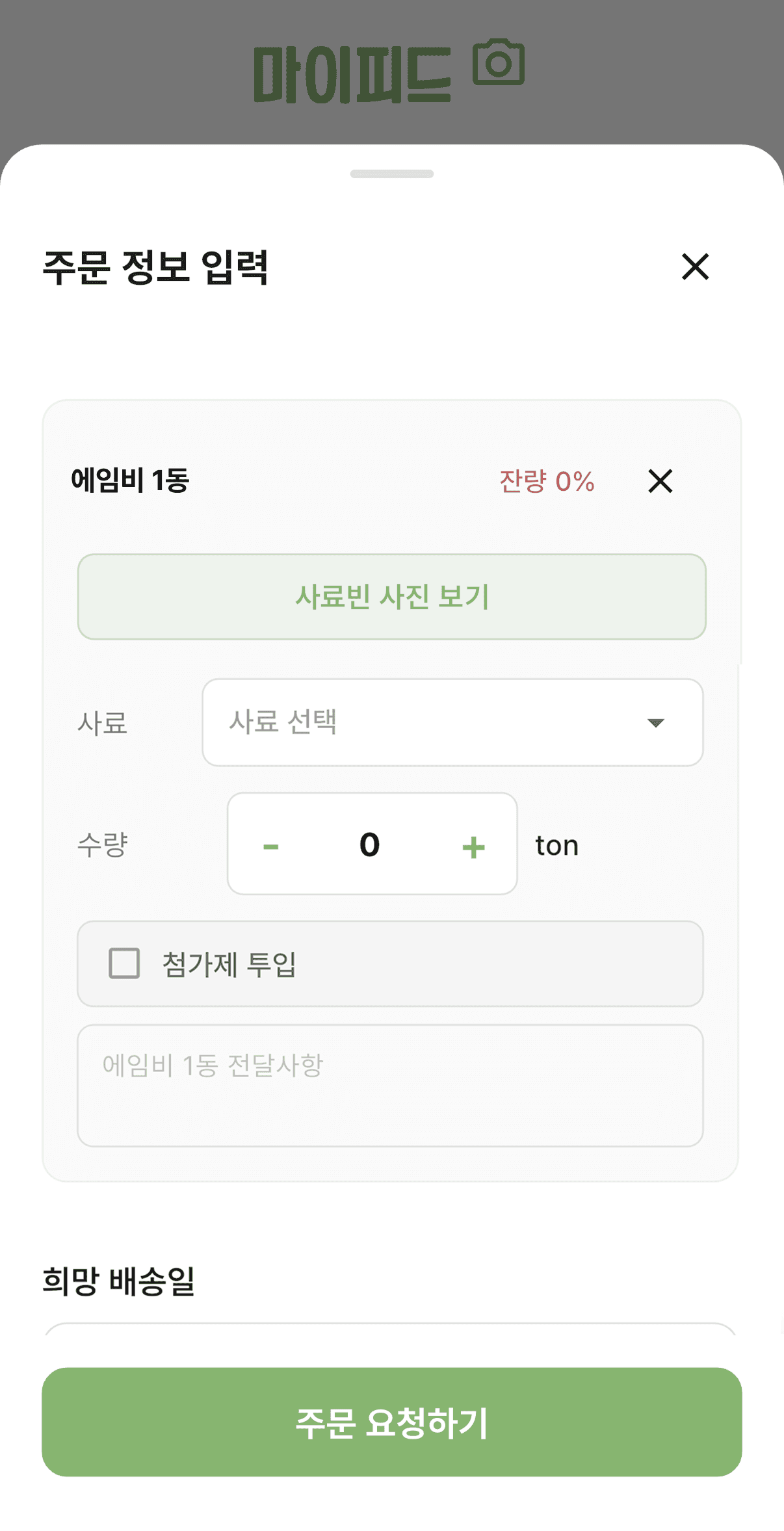
Enter feed type and quantity
Set the feed type and quantity (tons) per bin. You can also mark additive dosing and leave a note that applies to that bin only.
- 02
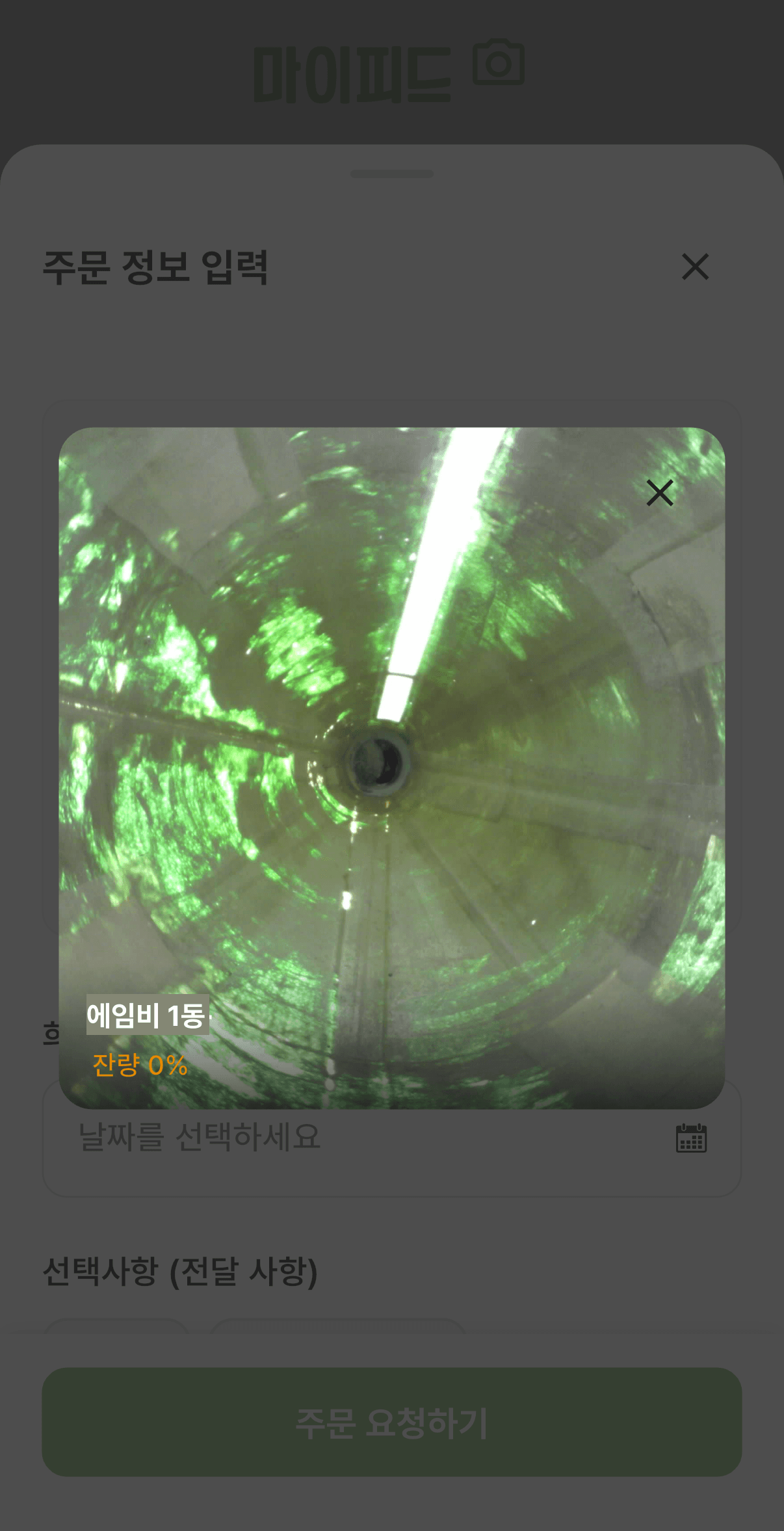
Reopen the bin photo
Tap 'View bin photo' on the form to review the current photo from inside the bin without leaving the screen.
- 03
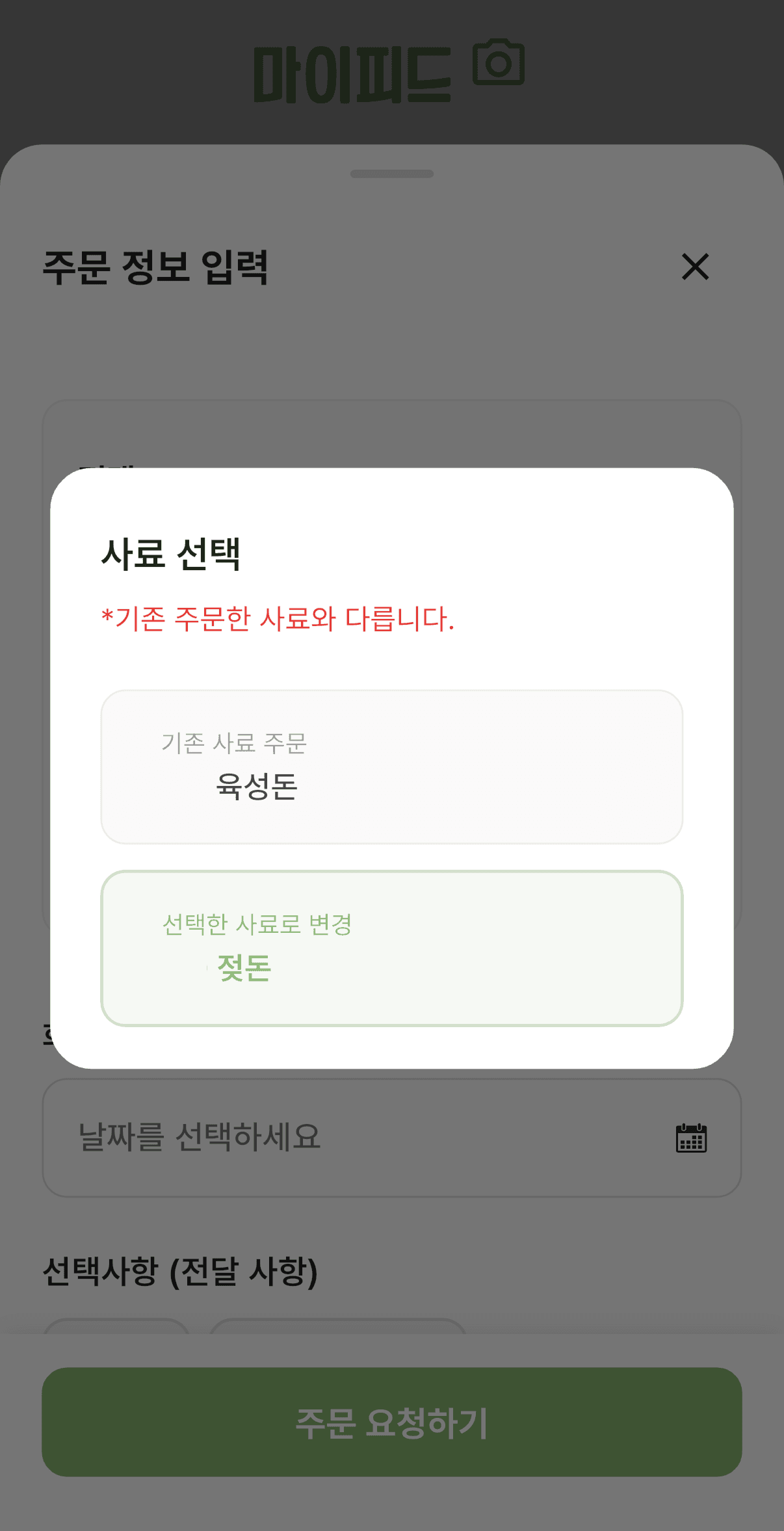
A changed feed type is flagged
Choosing a feed different from the one previously ordered prompts a confirmation first - preventing the wrong feed from being delivered.
- 04
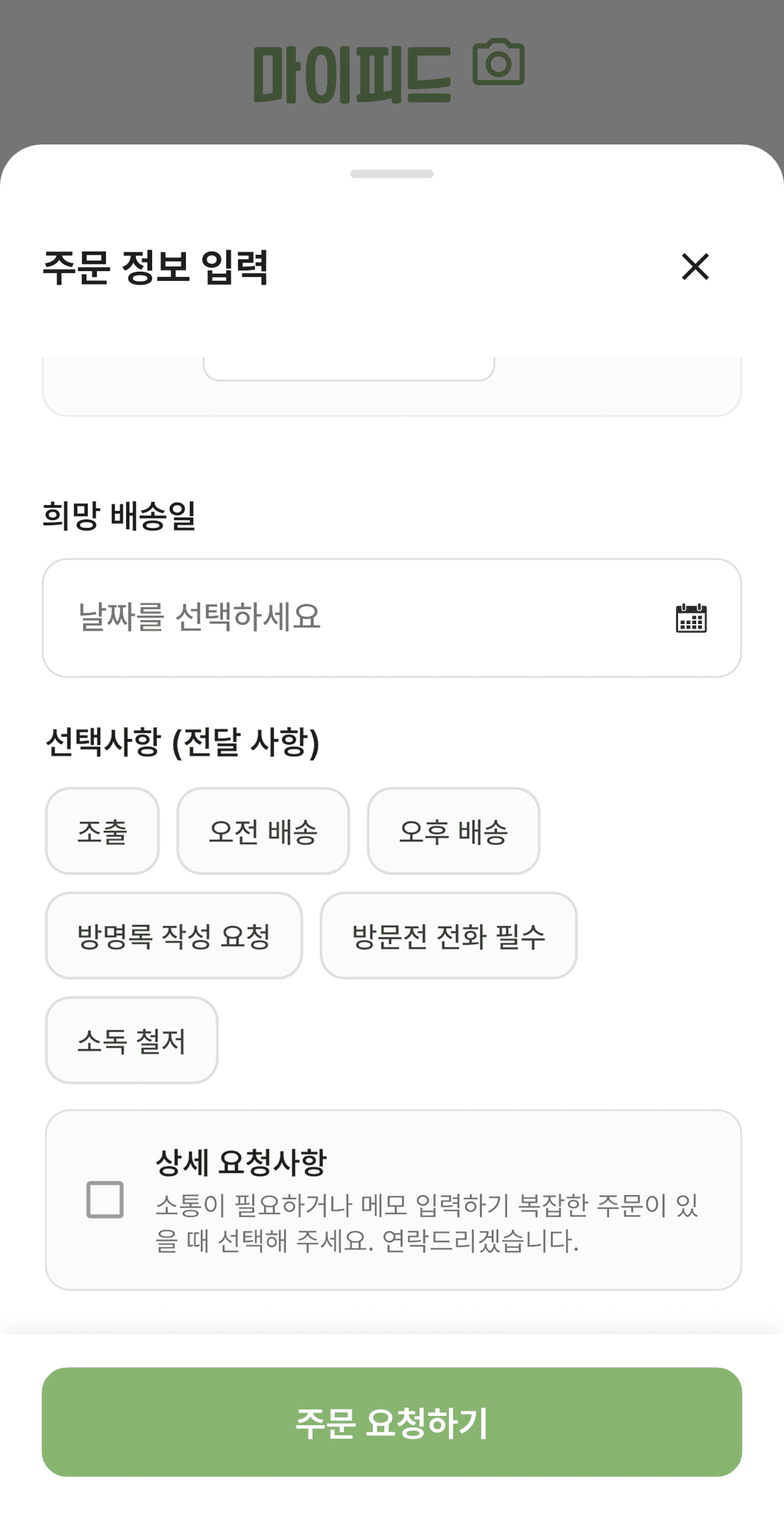
Set delivery date and requests
Pick the preferred delivery date and tap the requests that apply: early dispatch, morning or afternoon delivery, visitor log, call before arrival, or strict disinfection.
If the order is too complicated to explain by phone or text message, tick 'Detailed request' and the person in charge will contact you directly.
04Follow the order through to delivery in the app
No more calling to ask when it arrives. Progress is visible in the app from the moment the order is submitted.
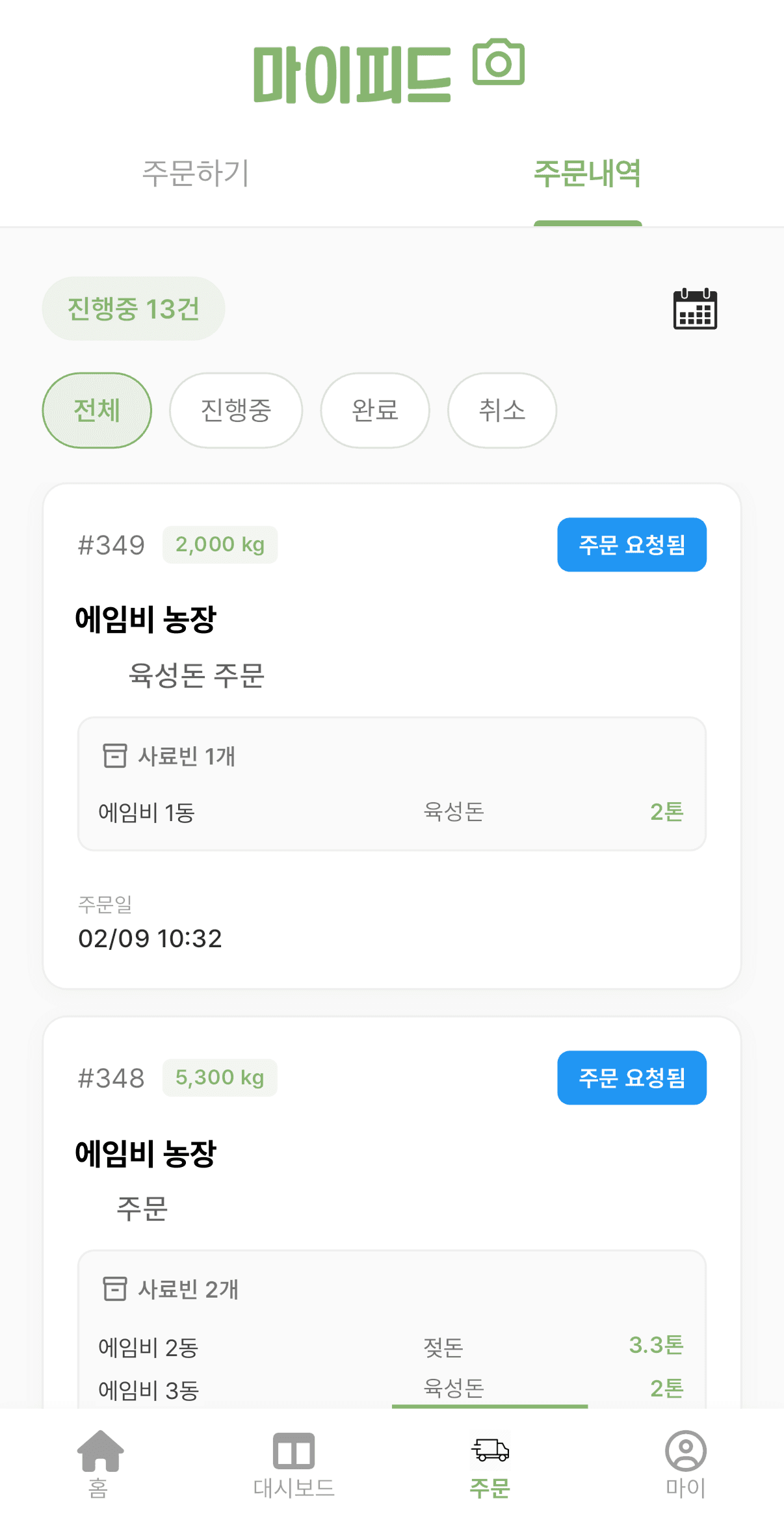
Status, stage by stage
Submission, preparation, in transit, and delivered each appear as a stage. Filter by all, in progress, completed, or cancelled.
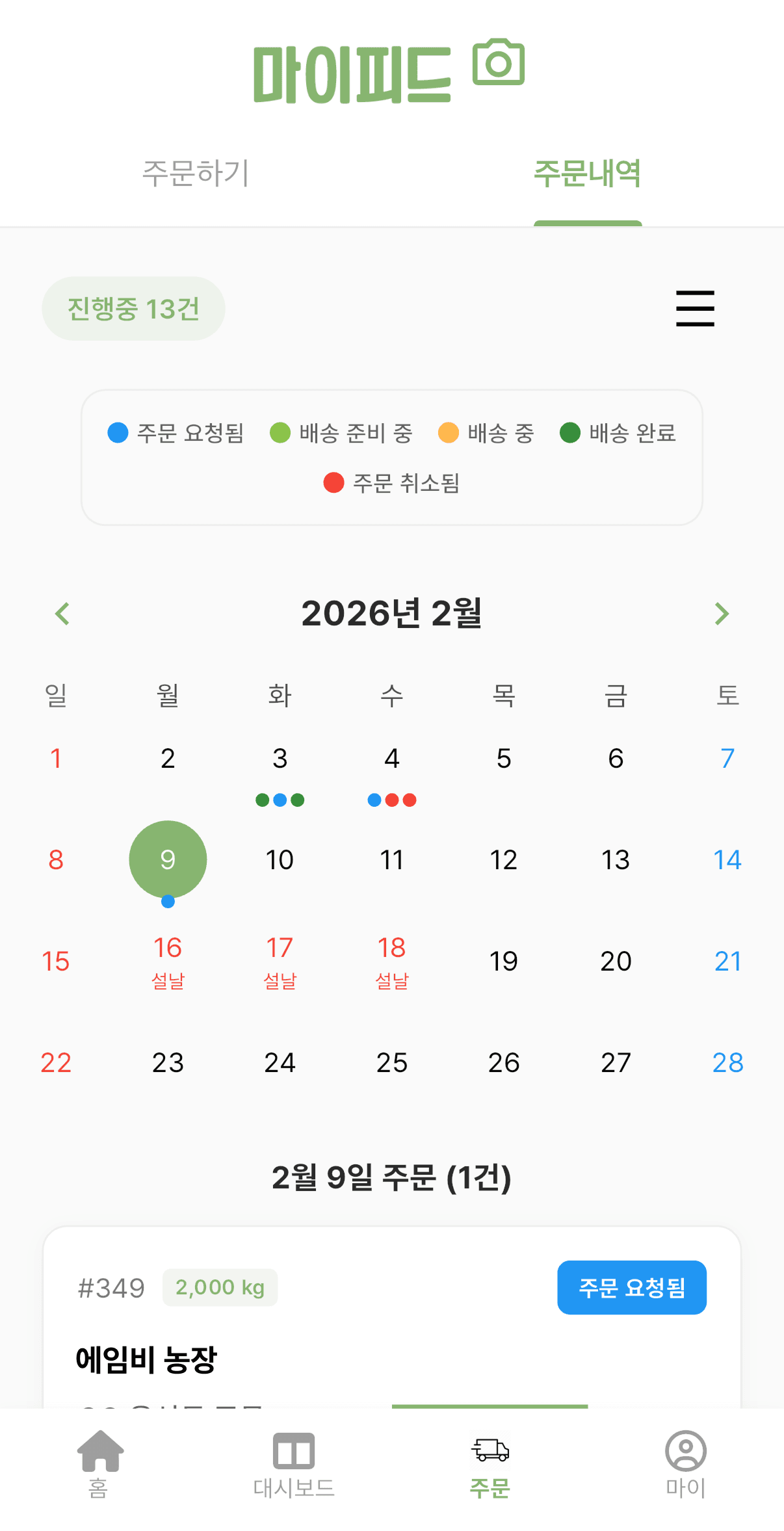
List view and calendar view
The calendar marks each day's orders by status colour and shows public holidays, which helps when choosing the next delivery date.
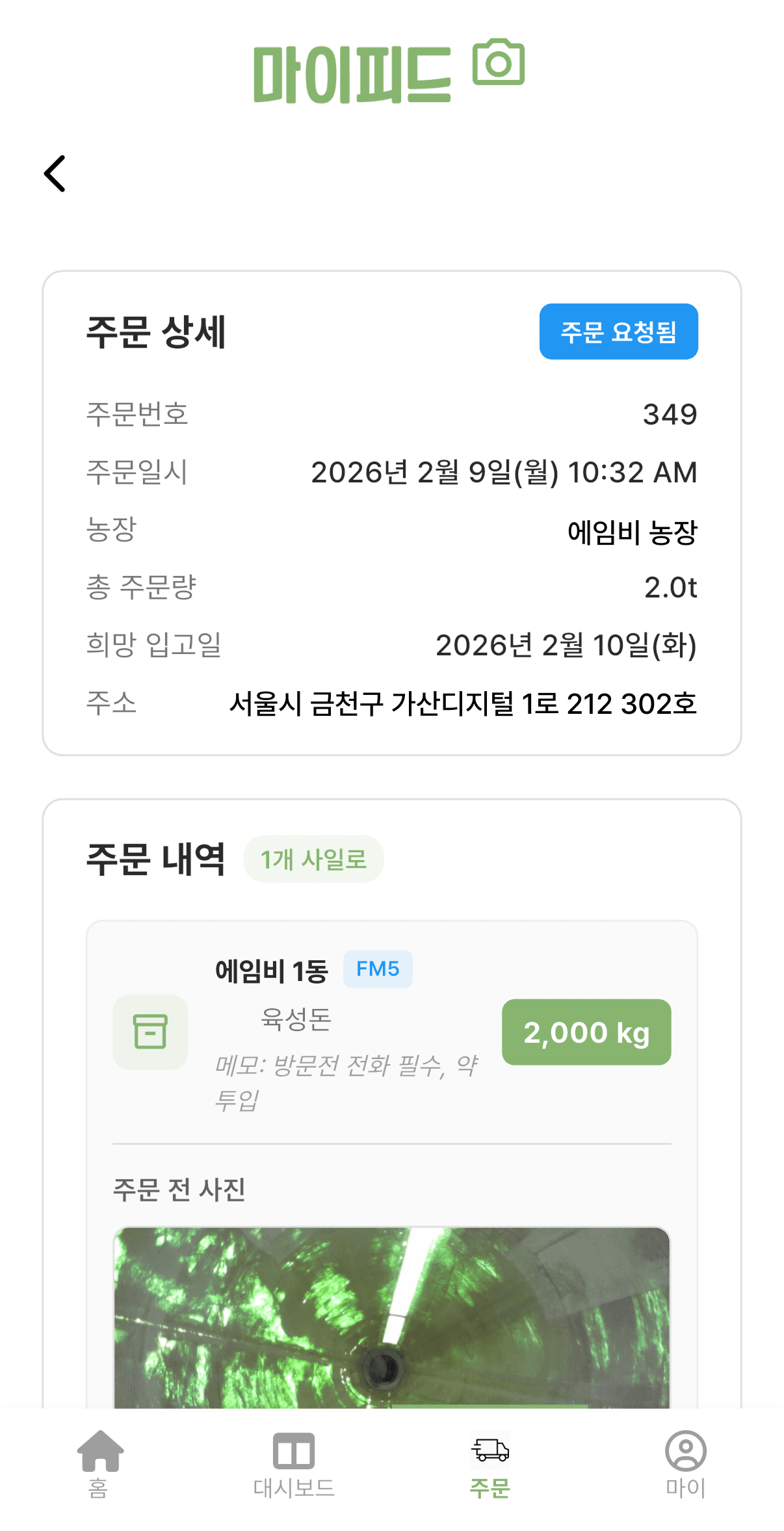
Compare against the pre-order photo
The photo taken before the order stays on the order detail, so you can compare it with the level after delivery and confirm what actually arrived.
Full order detail in one place
Order number, timestamp, farm, total quantity, preferred arrival date, and delivery address are all on one screen.
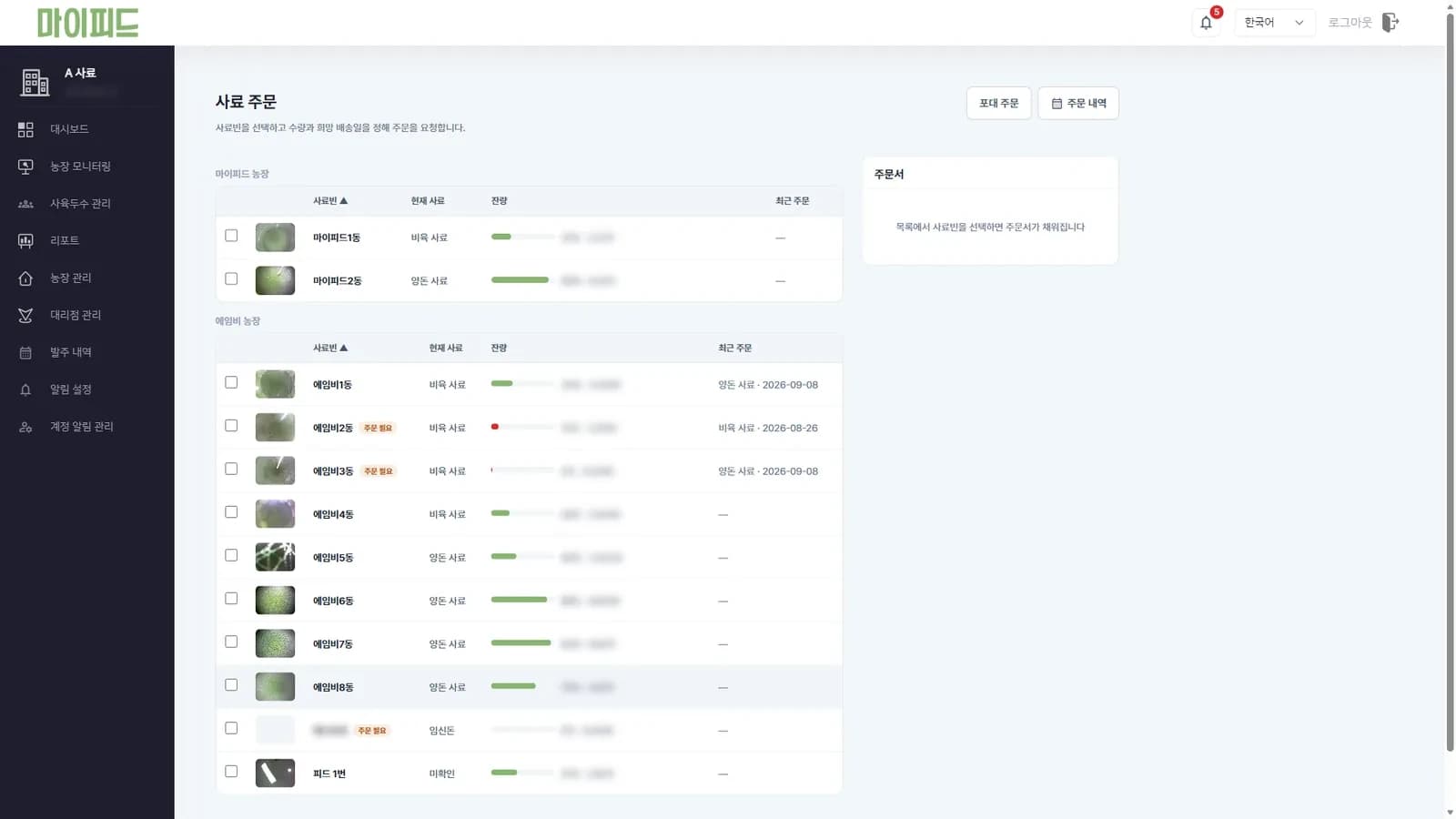
See customer inventory and plan deliveries ahead
- Customer bin inventory on one screen
- Fewer rush and same-day orders thanks to early alerts
- ERP integration that updates order, shipping and delivery status automatically
- Role-based access, so each team sees only its own customer farms
We explain in a consultation how feed companies receive orders and whether it connects to their systems.
Four things worth knowing first
One farm per order
A single order can only contain bins from one farm. If you need bins across farms, place a separate order for each farm.
Changes and cancellations have a cutoff
Orders can be modified or cancelled only until the cutoff shown at order time. Check the cutoff in the notice on the final confirmation screen.
Bagged feed is ordered separately
If you need bagged feed rather than bulk feed for the bin, use the bagged order option on the ordering screen.
Delivery can be delayed
Delivery may slip depending on the feed supplier's schedule. Leaving some margin on the preferred delivery date is the safer choice.
For farms and feed companies alike
We show farms how to order and feed companies how orders reach them. AimBe Lab handles everything from installation to app onboarding · Weekdays 09:00-18:00 KST